
You can now add specific notes to individual time entries in the Weekly tab using the Additional Value option.
By default, when you enter hours in a row and add a note in the Notes field, the same note is saved for all time entries in that row.
To add different notes to specific time entries, click the three dots in the required time entry cell. You will see three options:
- Use row value – Enabled by default. Enter a note in the Notes field to apply the same note to all time entries in the row.
- Exclude row value – Select this if you do not want the row-level note to be applied to a specific time entry.
- Save for this cell – Select this to add a specific note to an individual time entry. Enter the note in the Notes field in the Additional Value popup and click Save for this cell.
After adding the required notes, click Submit to save the time entries.
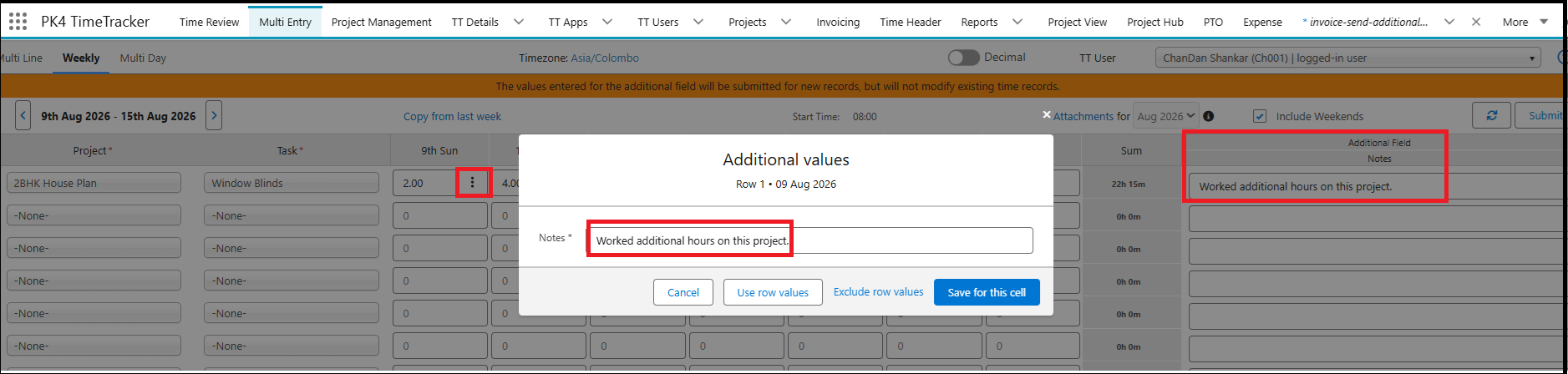
To check the notes added to the time entries before submitting, hover over the Additional Value button. The notes will be displayed as shown in the screenshot below.
To edit a note, click the Additional Value button, update the note, and click the Save for this Cell button.

Note: The Additional Value option applies only to time entries that have not yet been submitted. It will not replace or modify notes on previously saved time entries.