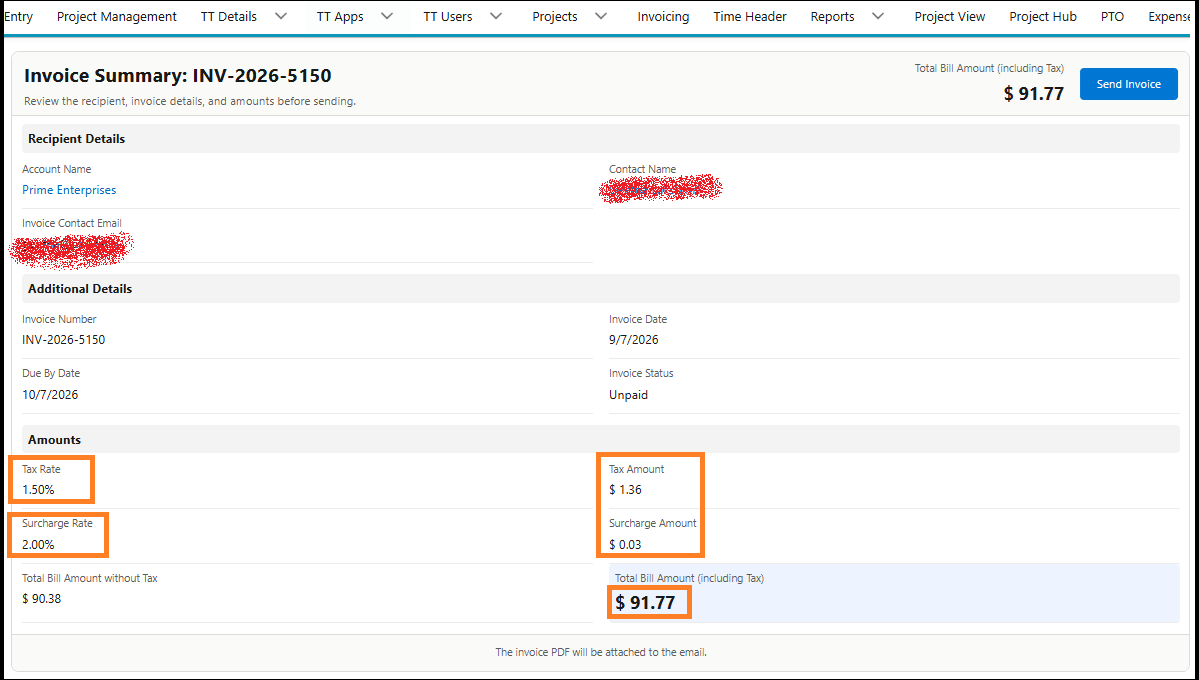
You can now view invoice details, such as Tax, Surcharge, Total Amount, Material Cost, and other required fields before sending an invoice to the customer.
To view these details on the Invoice Summary page, you need to add the required field API names to the TimeTracker Flag.
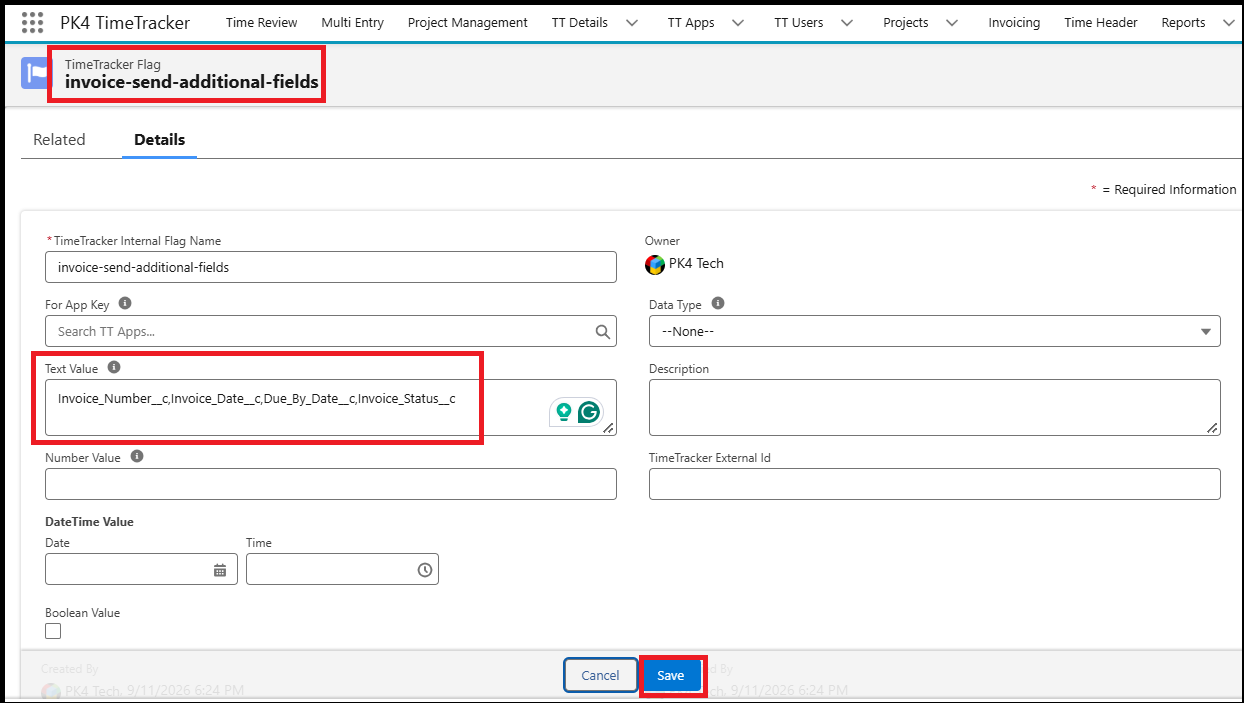
Configure the TimeTracker Flag
- From the Admin ID, go to TimeTracker Flags.
- Search for the following flag:
invoice-send-additional-fields In the Text Value field, enter the API names of the fields you want to display.
For example:
Invoice_Number__c,Invoice_Date__c,Due_By_Date__c,Invoice_Status__c- Make sure that all field API names are comma-separated.
- You can add up to 10 field API names that you want to display on the Invoice Summary page.
- Click Save.
View the Additional Invoice Details
After configuring the flag:
- Go to Invoicing.
- Search for the invoice for which you want to view the details.
- Click the Invoice Number to open the invoice.
- Click Send Invoice.
- The Invoice Summary page will display the fields that you configured in the flag in the Additional details section as in the screenshot below.
- Review the invoice details and click the Send Invoice button to email the invoice to your customer.