Setting Up Profile Image in Salesforce
The user initials or profile images may not appear in the Users List because the user has not added a profile image in their Salesforce profile.
- If the user is not a Salesforce user, initials will be displayed automatically.
- If the user is a Salesforce user and is linked with a TimeTracker (TT) User, initials will not appear unless a profile image is added in Salesforce.
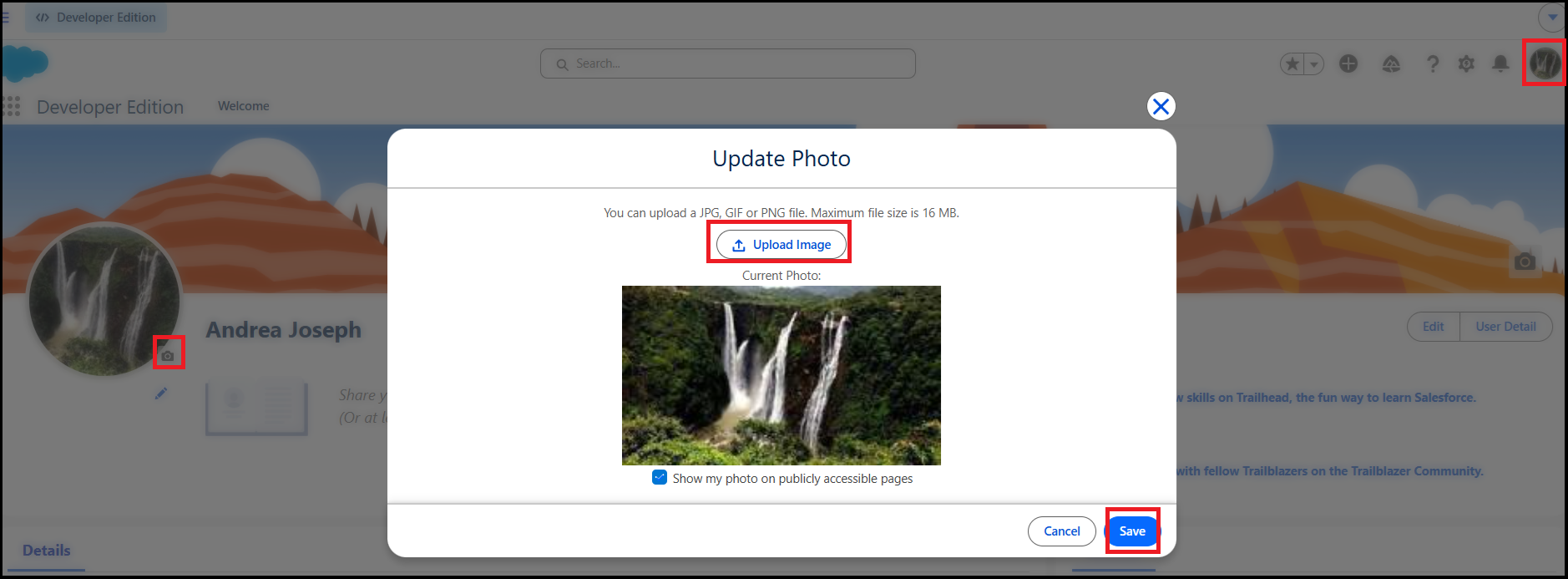
To add a profile image in Salesforce, please follow the steps below:
- Log in to Salesforce.
- Click on your Profile Image (top-right corner).
- Click on your name to open the Profile page.
- Click the Camera icon on the profile picture.
- Select Upload Image.
- Upload your image and click Save.
Once the image is saved, the profile picture will be displayed in the Users List on the Project View / Project Management page.