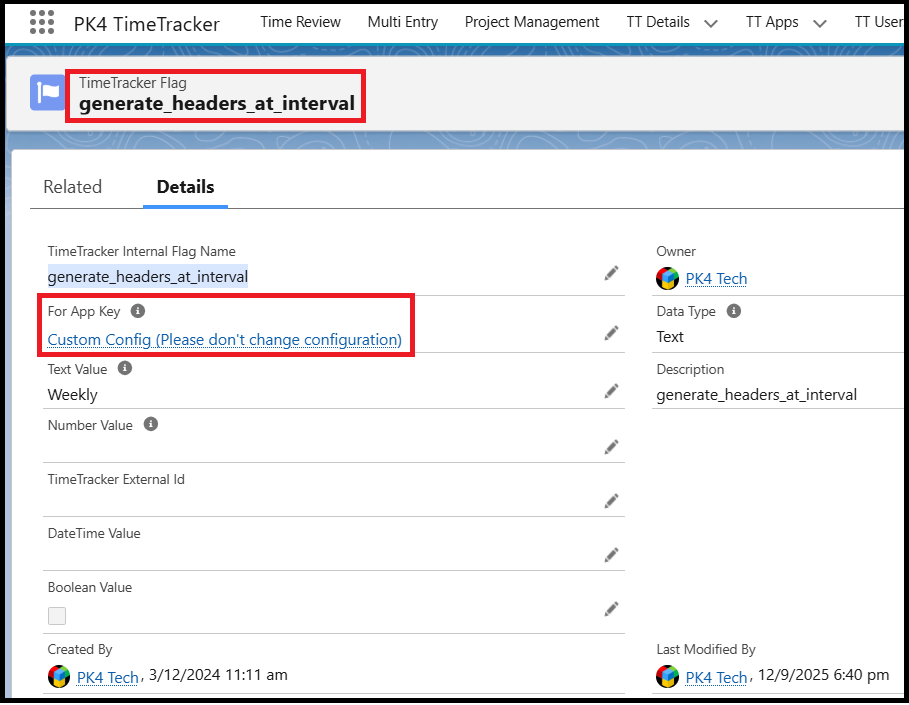
Users may be unable to add attachments in the Weekly tab if the App Key is not configured correctly in the TimeTracker Flags and TT Users setup.
When they click the Attachments string, the users see the message as "Error: Cannot include or add files as no header is found for the selected interval and start date."
This issue occurs when the App Key defined in the TimeTracker Flag does not match the App Key assigned to the TimeTracker user.
How to Configure the App Key Correctly
Follow the steps below to ensure the App Key is set up properly.
Step 1: Update the TimeTracker Flag
In Salesforce, navigate to the TimeTracker Flags object.
Search for the flag named
generate_headers_at_interval.In the For App Key field, select the required App Key.
Save the record.
Step 2: Verify the TimeTracker User Configuration
Go to the TT Users page.
Open the TimeTracker user who is using the Weekly tab.
Ensure the App Key assigned to the user matches the App Key configured in the TimeTracker Flag.
Save the changes.
Important Notes
Users will not be able to add attachments if the App Key in the TimeTracker Flag and the TT User record do not match.
If your org has multiple configurations:
Clone the TimeTracker Flag.
Set the relevant App Key in both the Flag and the TT User records.
This ensures users under different configurations can successfully add attachments in the Weekly tab.
By keeping the App Key consistent across both the Flag and TT User setup, attachment functionality in the Weekly tab will work as expected.