Card View – Task Stage Setup
The Card View will not display any data until the required Task Stages are configured.
Tasks are shown in the Card View based on their assigned stages, with each stage appearing as a column on the board.
Setting Up Task Stages
Follow the steps below to configure Task Stages so that tasks appear in the Card View.
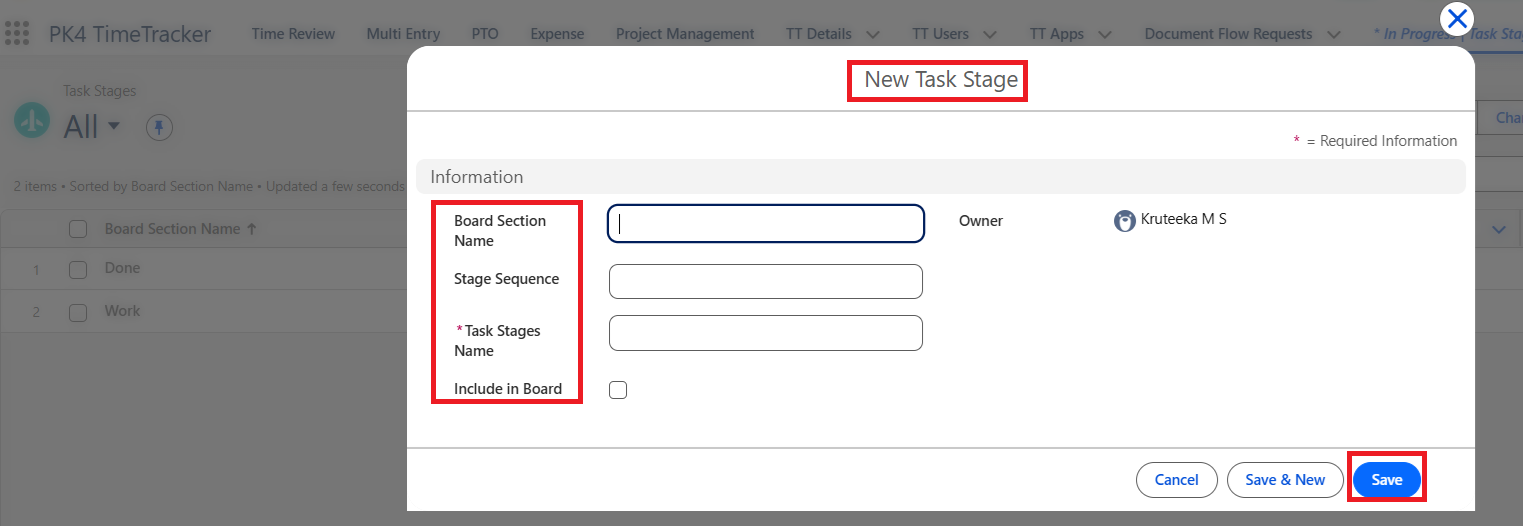
Go to the Task Stage object and click New.
Enter the Board Section Name: This name is displayed as the column header on the Card View board.
Set the Stage Sequence: Enter the sequence number to define the column order in the Card View
(for example,1for the first column,2for the second column, and so on).Enter the Task Stage Name: This is the stage that will be assigned to tasks
(for example, In Progress, indicating the team is actively working on the task).Enable “Include in Board”: Only stages with this option enabled will be displayed in the Card View and Save it.