
Deassign a Task
To deassign a task from a user:
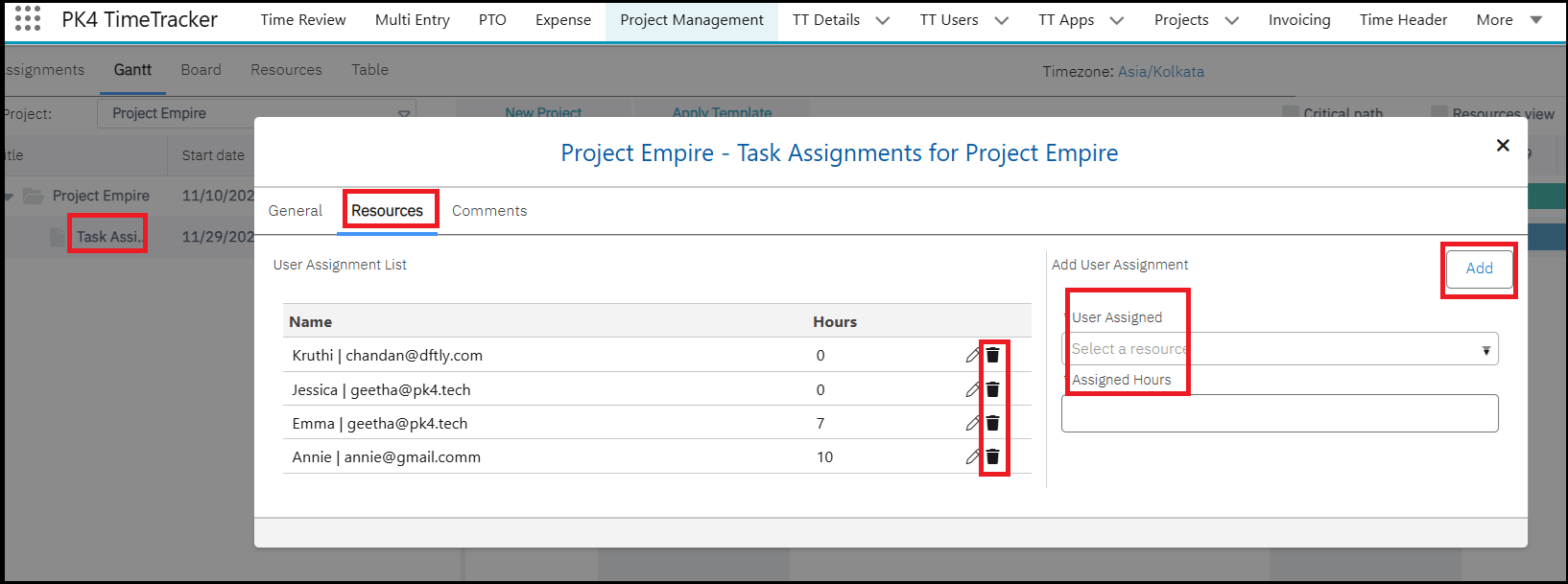
- Go to the Gantt screen and select the required project from the Project list.
- Click the Task Name. In the pop-up window, go to the Resources tab.
- The Resources tab displays the users assigned to the task.
- To remove a user's assignment, click Delete next to the user.
- To assign the task to another user, select the user from the User Assigned field and enter the Assigned Hours.
- Click Add to add the user to the task.
- Go to the General tab and click Done to save the changes.
Reassigning a Task from the Board Tab
To reassign a task to another user:
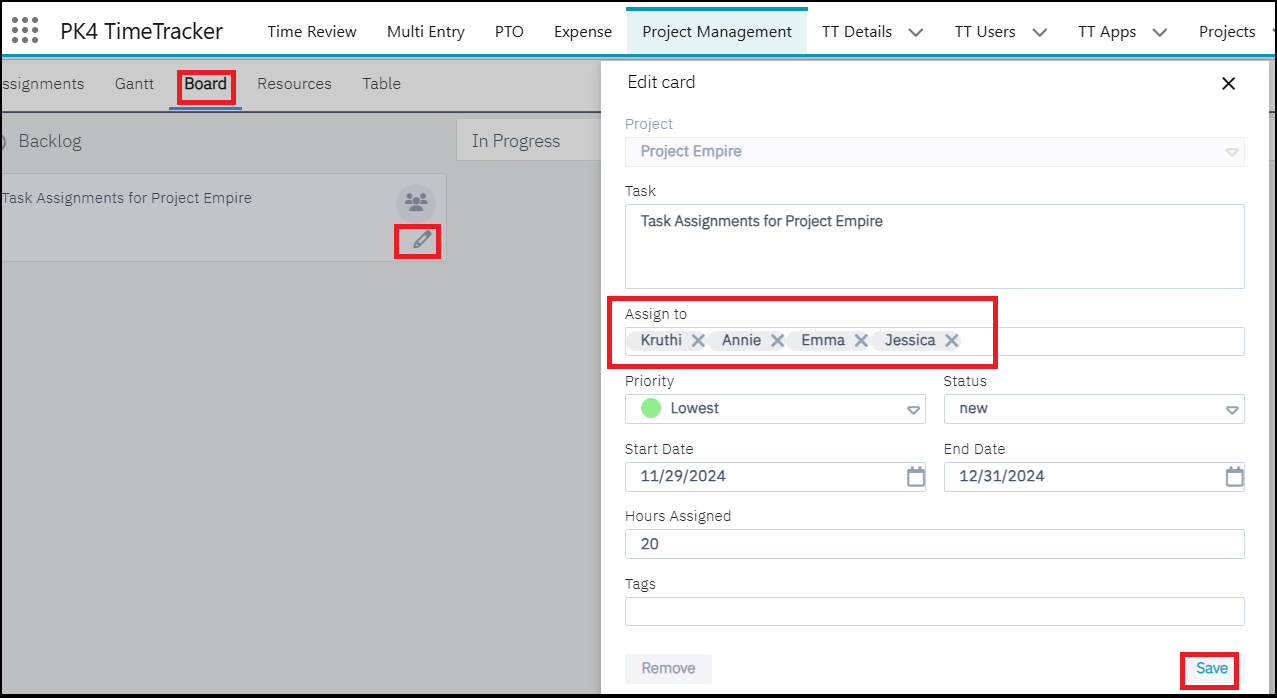
- Click the Pencil icon on the task tile.
- In the Task Assignment section, click the X button to remove the currently assigned user.
- Search for and select the new user you want to assign the task to.
- Click Save to apply the changes.
Task Reassignment – Remaining Hours
When reassigning a task, the hours already tracked by the current user are retained. The remaining hours are distributed based on the new assignment.
- If a task is assigned for 24 hours and the user has already tracked 4 hours, the remaining 20 hours are divided between the current user and an additional assigned user. For example, the remaining hours can be divided as 10 hours + 10 hours between the two users.
- If a task is assigned to a user for 24 hours, and the user has already tracked some hours, and the task is then deassigned and reassigned to another user, only the remaining untracked hours are assigned to the new user. The hours already tracked by the previous user remain unchanged.